1. Log into your teacher dashboard.
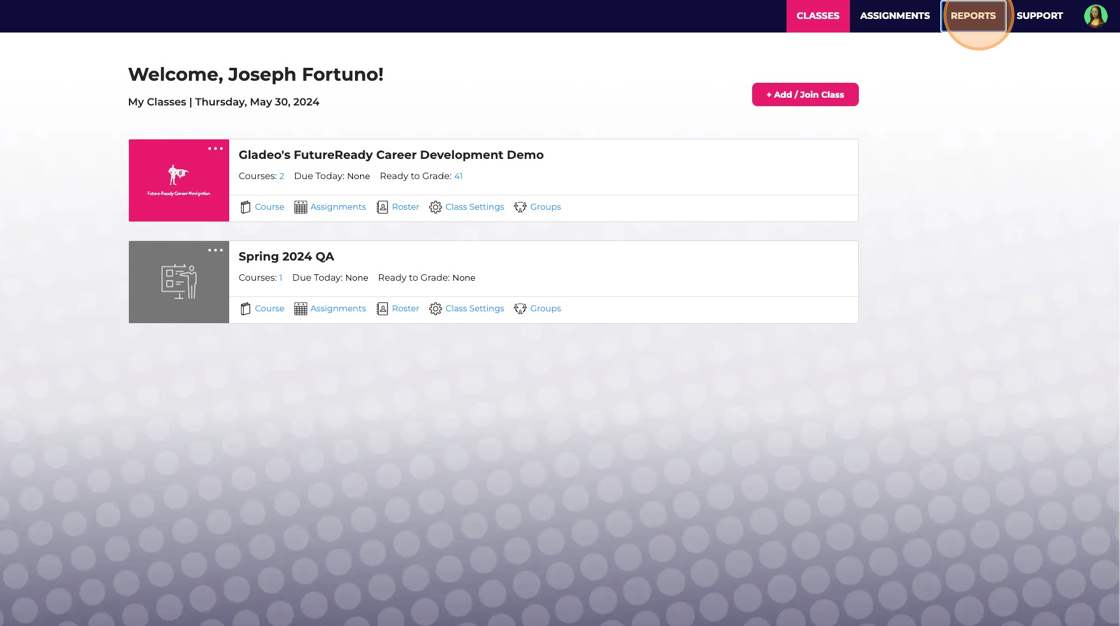
2. Click "REPORTS" in the top right corner
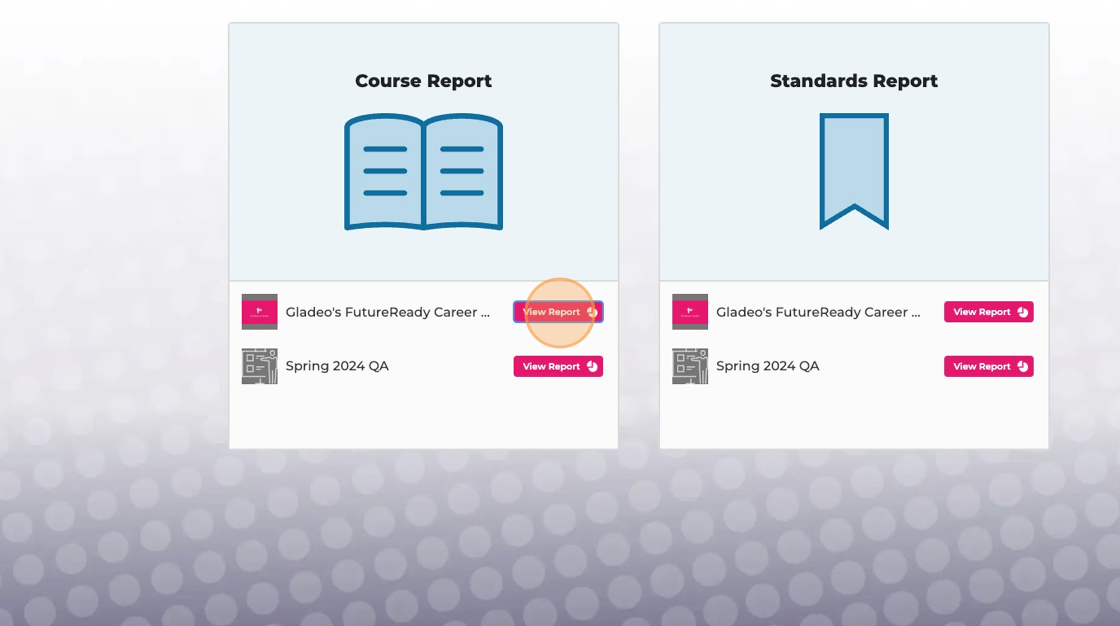
3. Under "Course Report," click "View Report" next to the class you'd like to view.
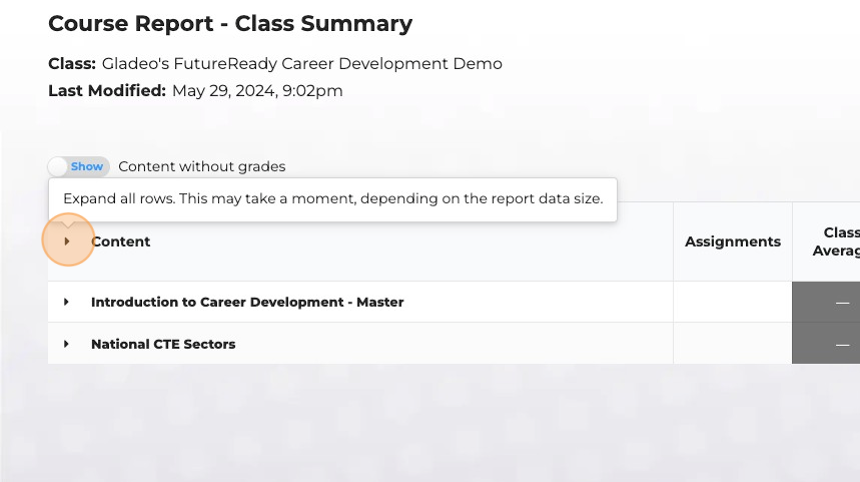
4. Inside the Course Report, click on the arrow at the top of the grid next to "Content" to open the entire course view.
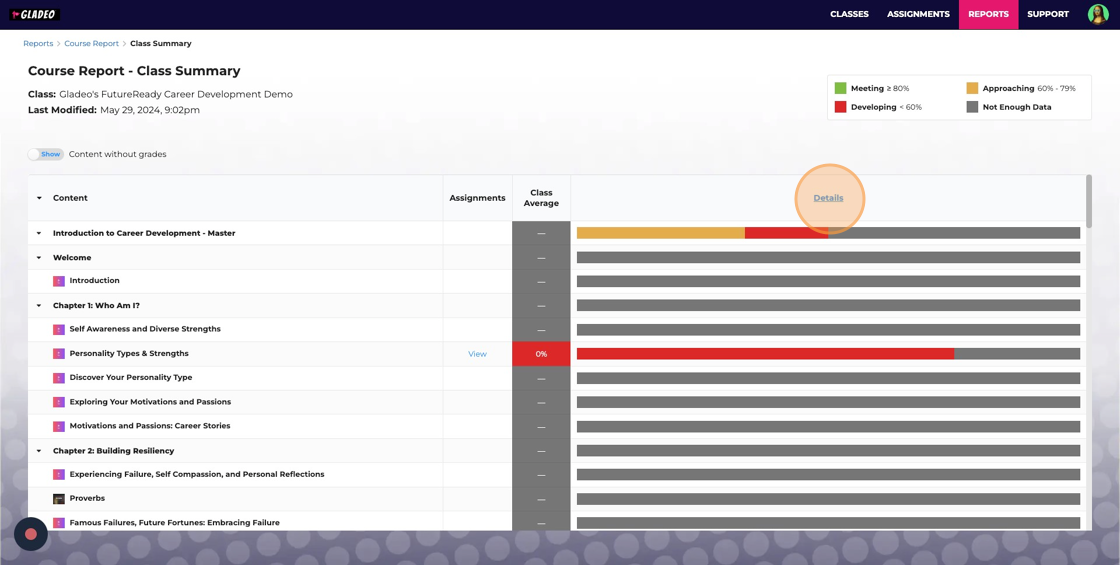
5. Click on "Details" to see your class of students.
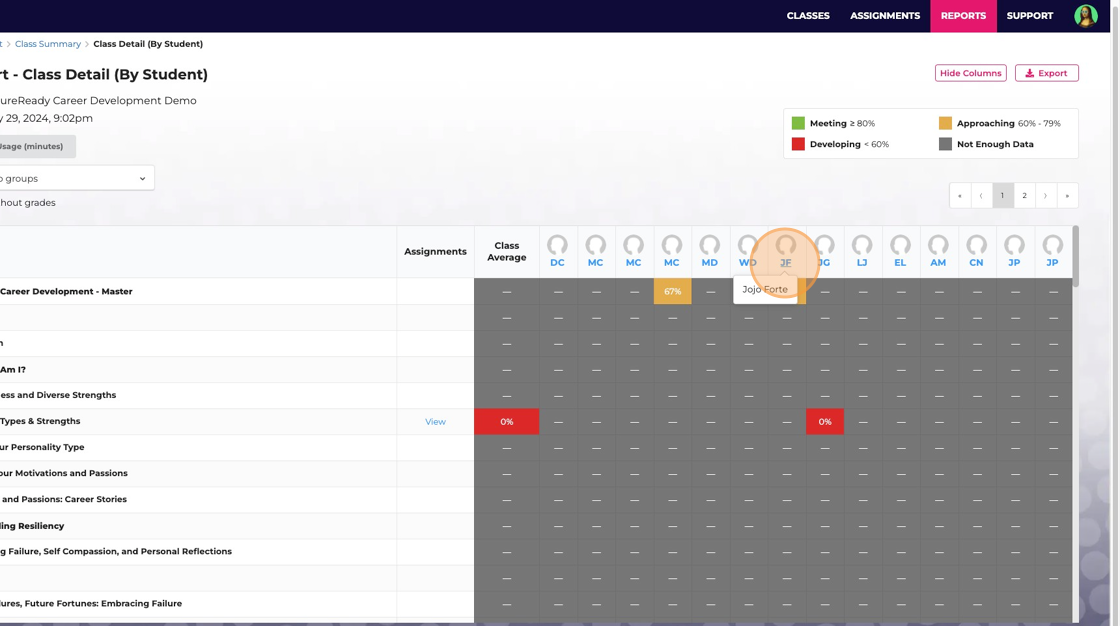
6. This view will show your student's initials. Hover over the initials to confirm their name. For this scenario, "JF" is for Jojo Forte. Click on the initials of the student you'd like to view.
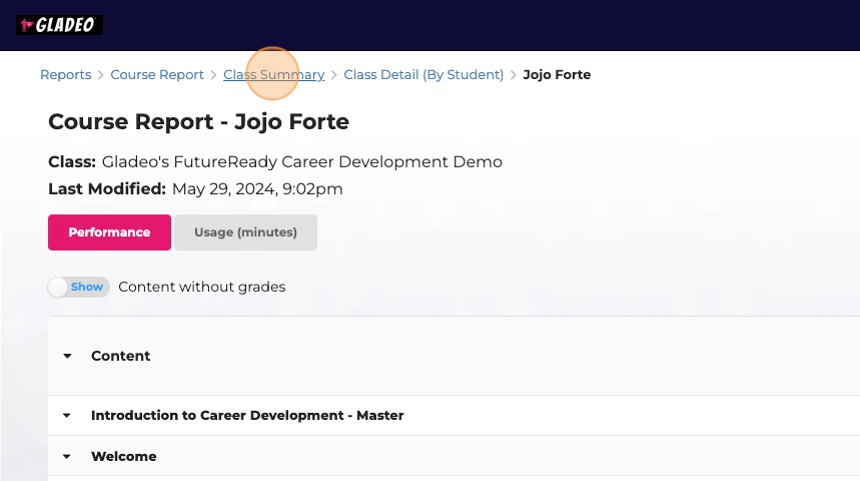
7. In this view, you'll be able to see a course report for the specific student. To go back to your "Class Summary," click on the breadcrumbs on the top of the page.
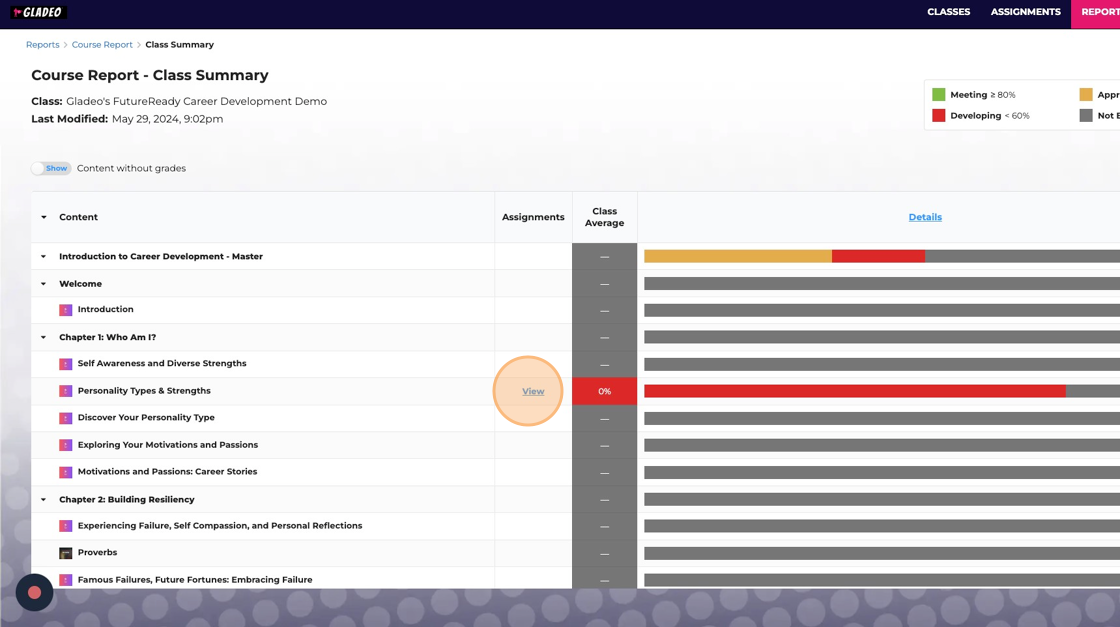
8. Click "View" next to a lesson (under "Assignments") to open up the grade book for that lesson.
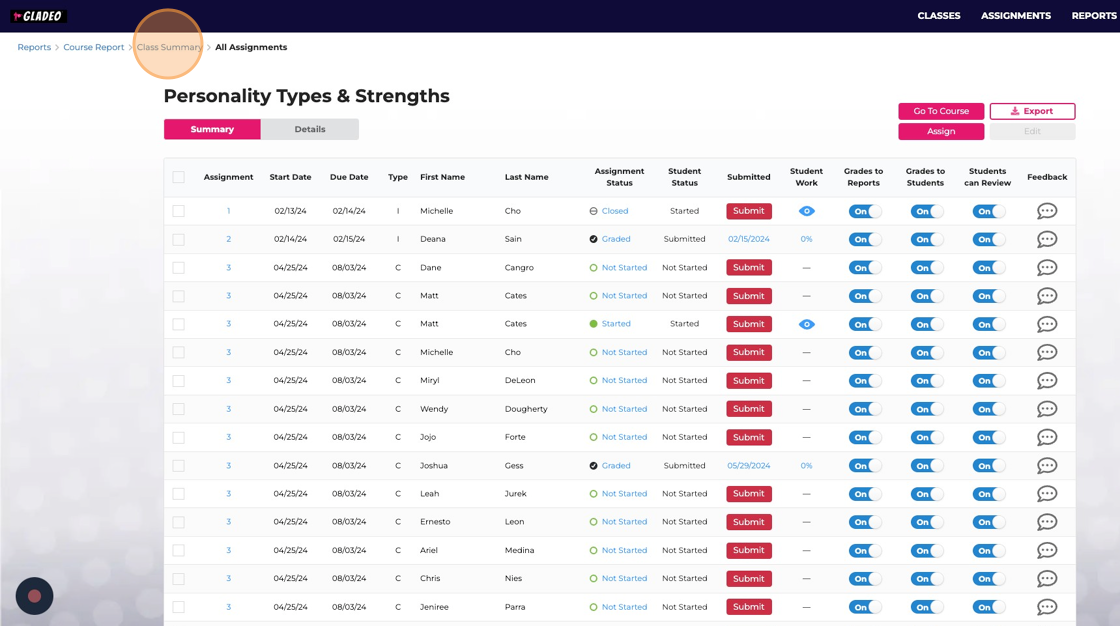
9. This will bring you to a page with the grade book for the assignment chosen. You can grade all students' work in this page. To learn more about grading assignments, please see this tutorial. To go back to your "Class Summary," click on the breadcrumbs on the top of the page.
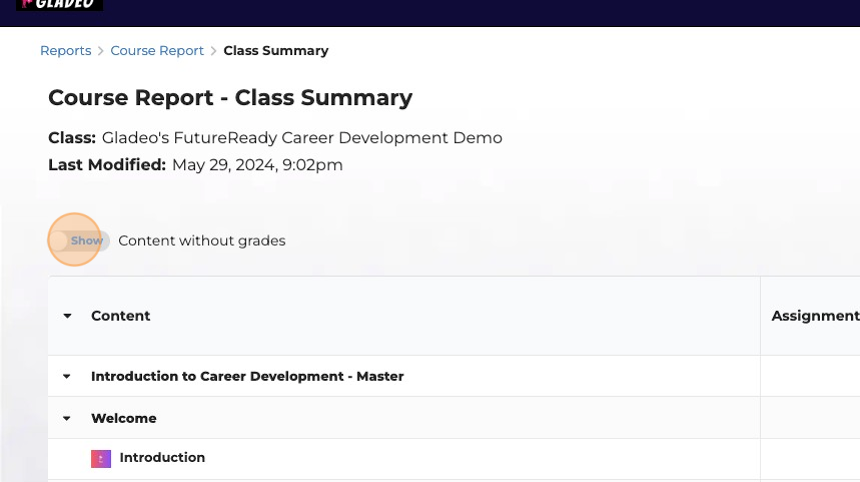
10. On the "Course Report" page, you can filter out all content that has not been graded by toggling "Hide" on the slider next to "Content without grades."
Toggling it to "Show" (the default setting) will show all content.
Was this article helpful?
That’s Great!
Thank you for your feedback
Sorry! We couldn't be helpful
Thank you for your feedback
Feedback sent
We appreciate your effort and will try to fix the article