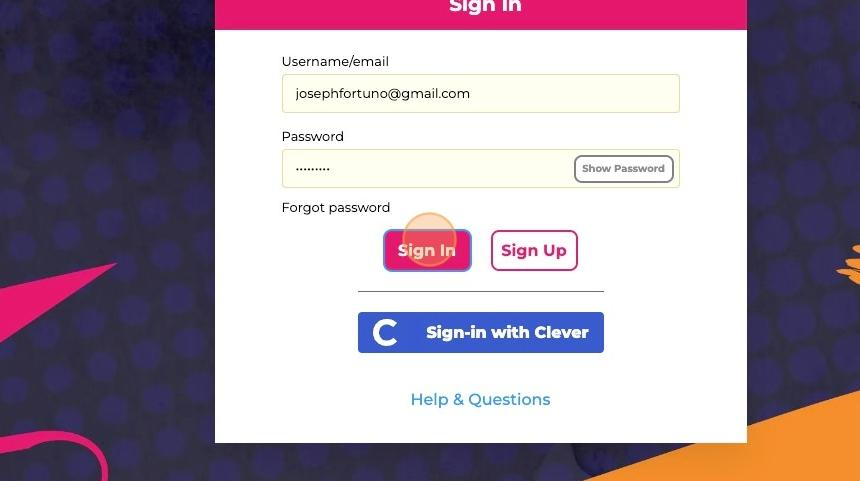
Navigate and log-in to https://gladeo.content2classroom.com/signin
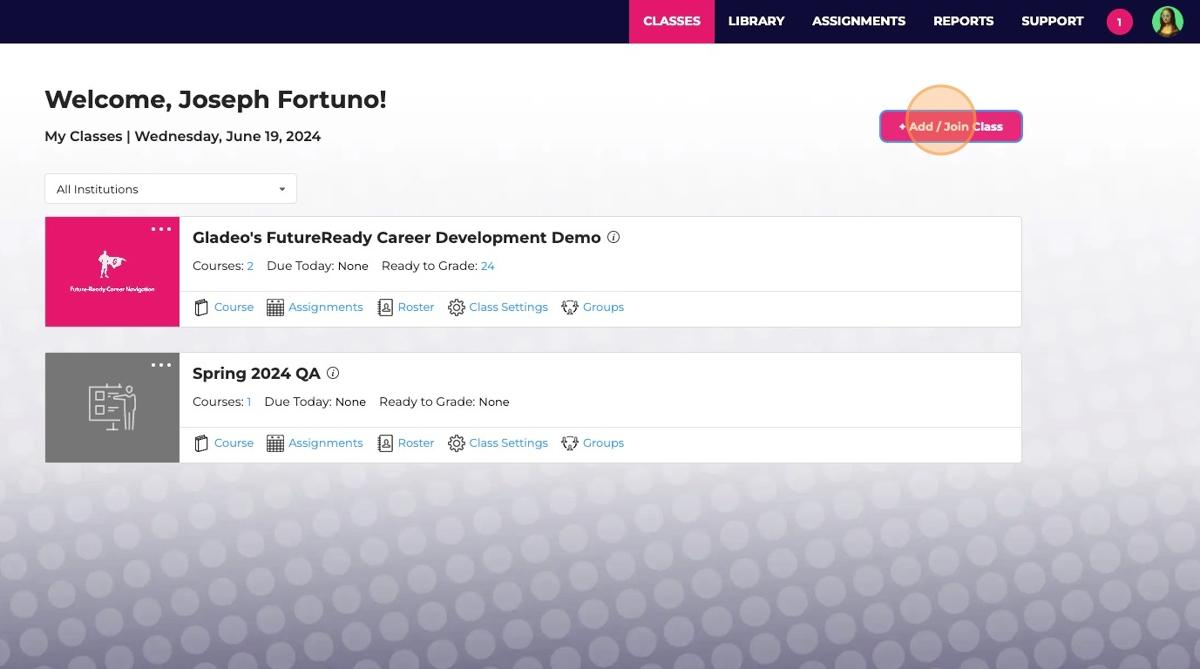
On your Dashboard, click "+ Add / Join Class"
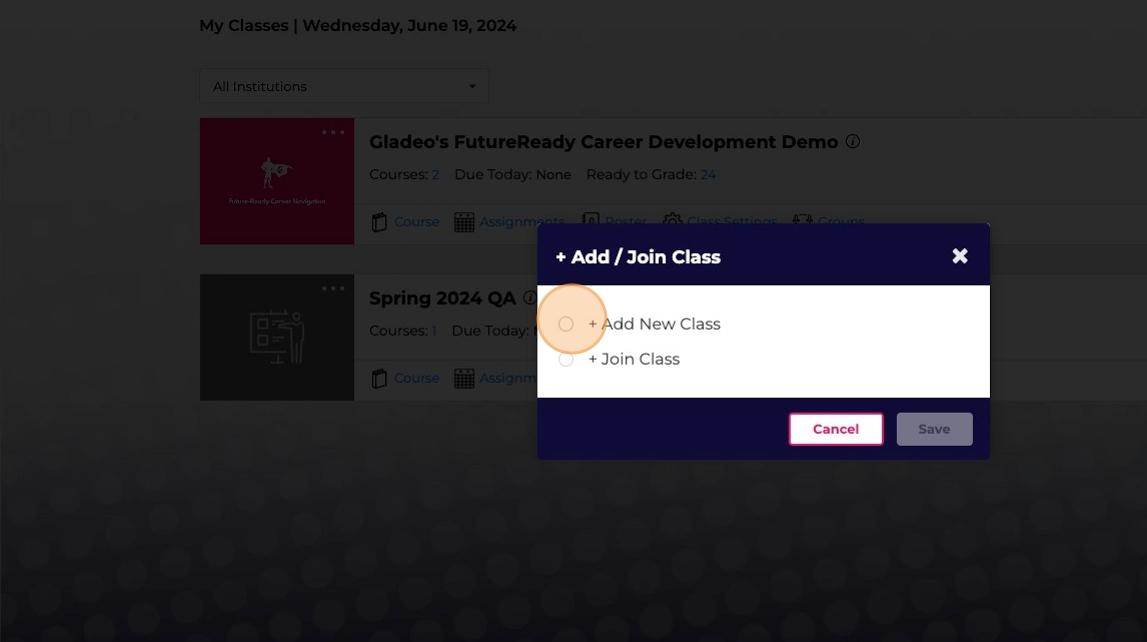
To add a new class, select "+ Add New Class"
For "+ Join Class" instructions, jump to Step 13
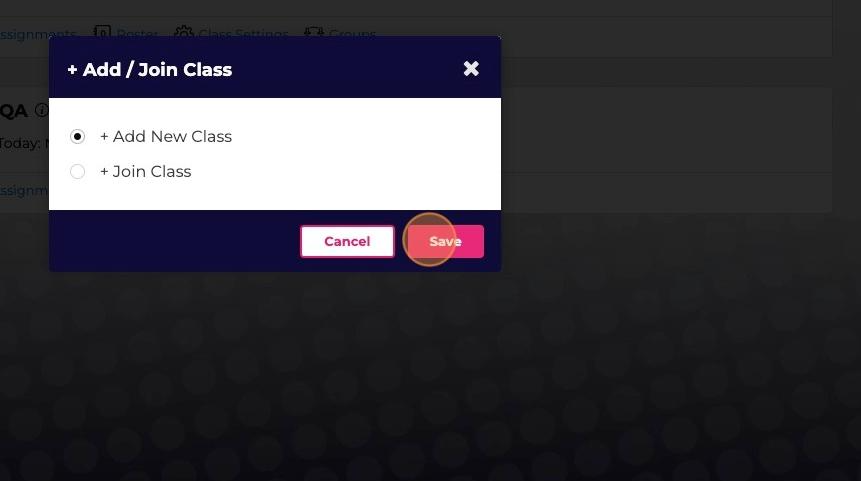
Click "Save"
Add a name in the "Class Name" field.
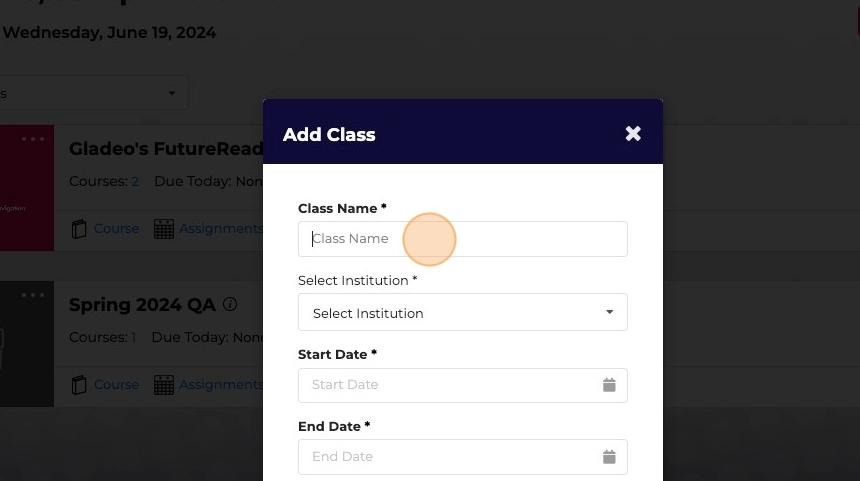
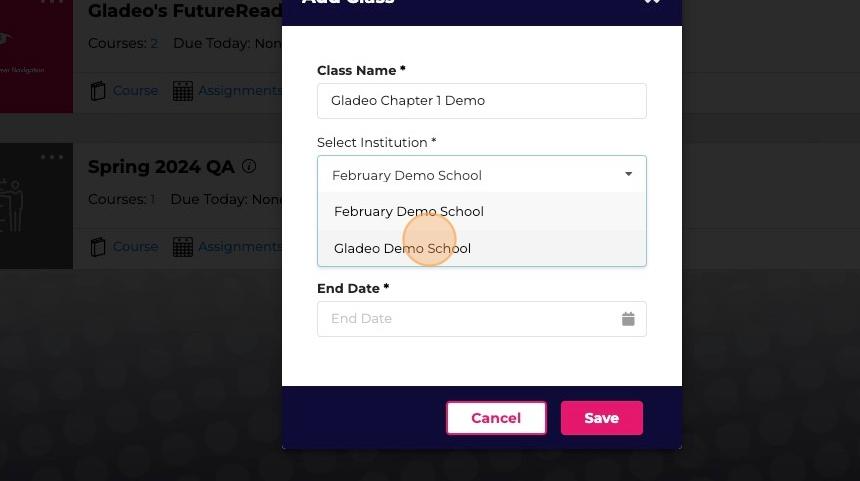
Click "Select Institution" to select the Institution you are assigned to.
In this example, we are in "Gladeo Demo School"
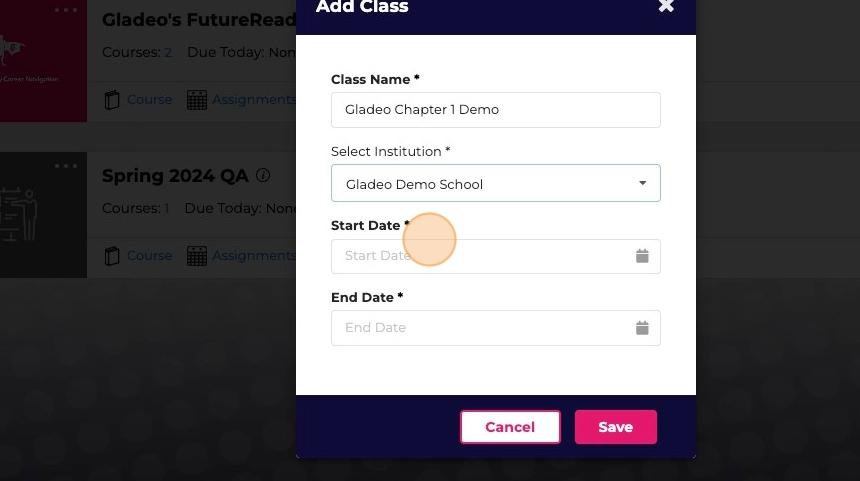
Enter a Start Date and End Date for the class.
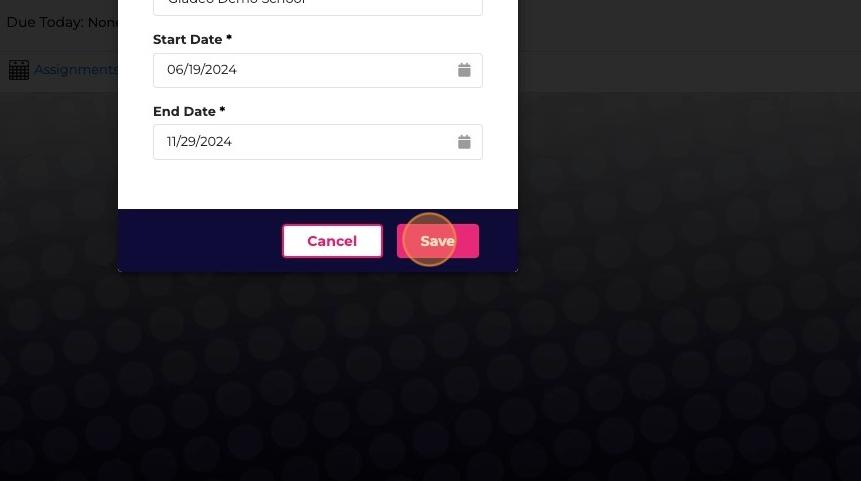
When you've added the necessary information, click "Save"
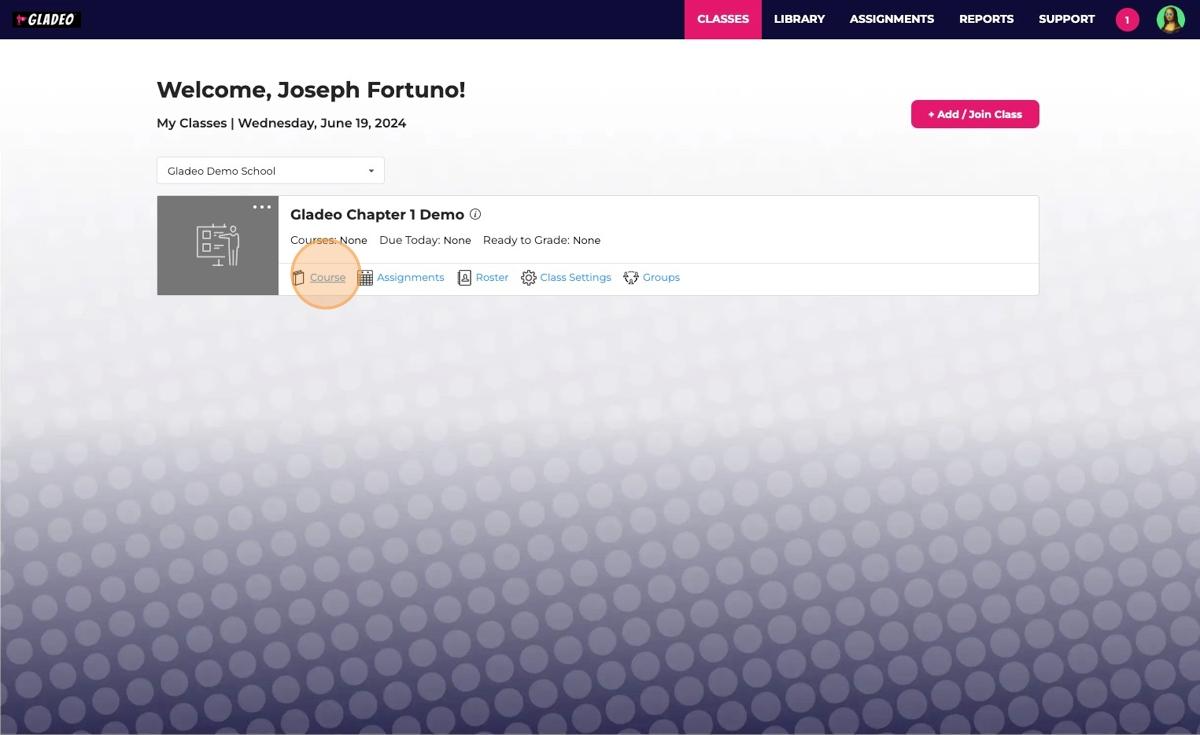
Go back to your dashboard. You will see the new class on this page. Click "Course" in that class.
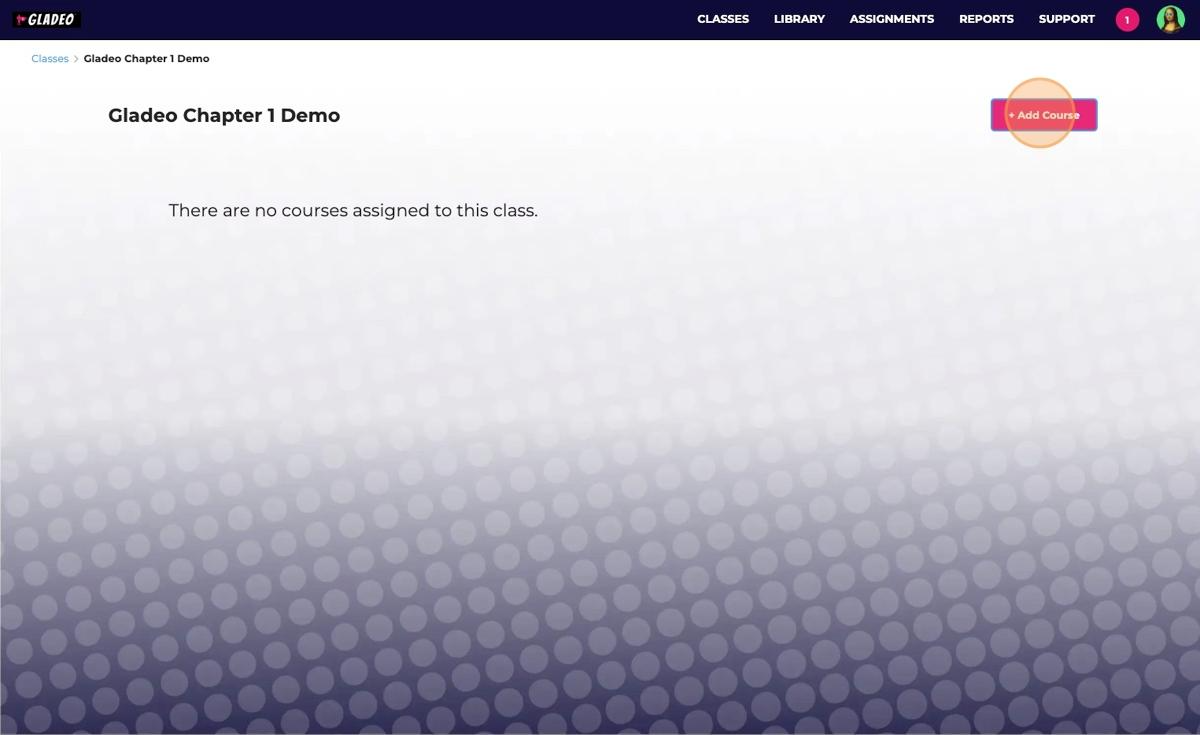
On the next page, click "+ Add Course"
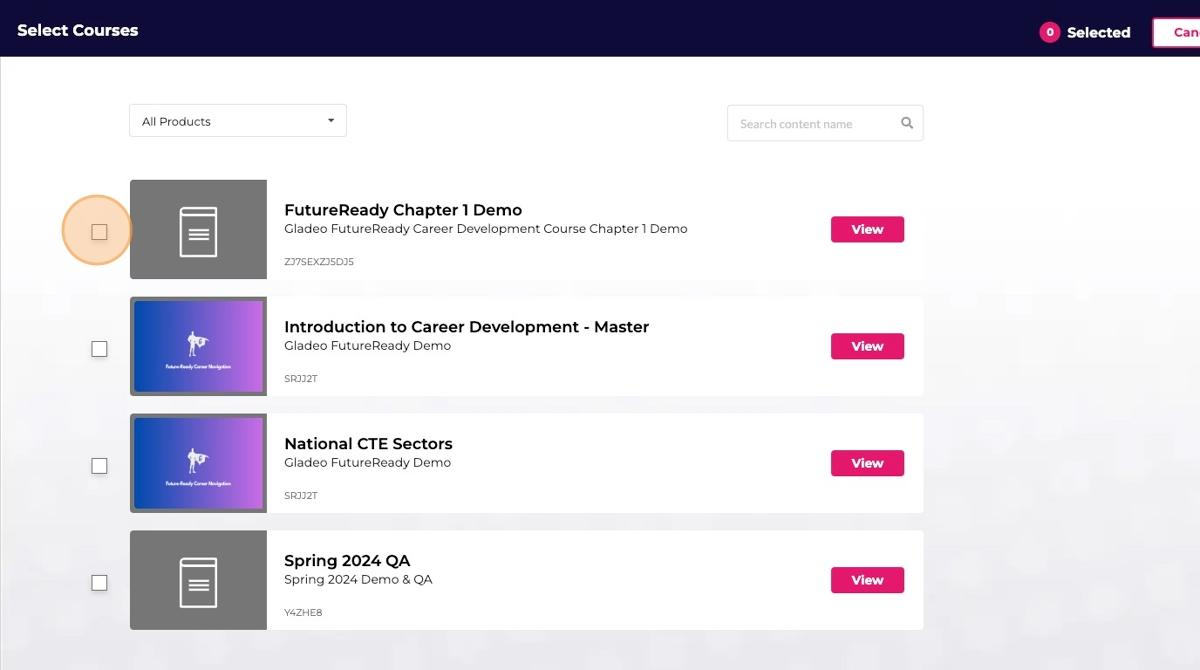
A list of available courses will appear on the next page. Use the checkboxes on the left-side of the screen next to the Course Names to select which Course/s to add to your class.
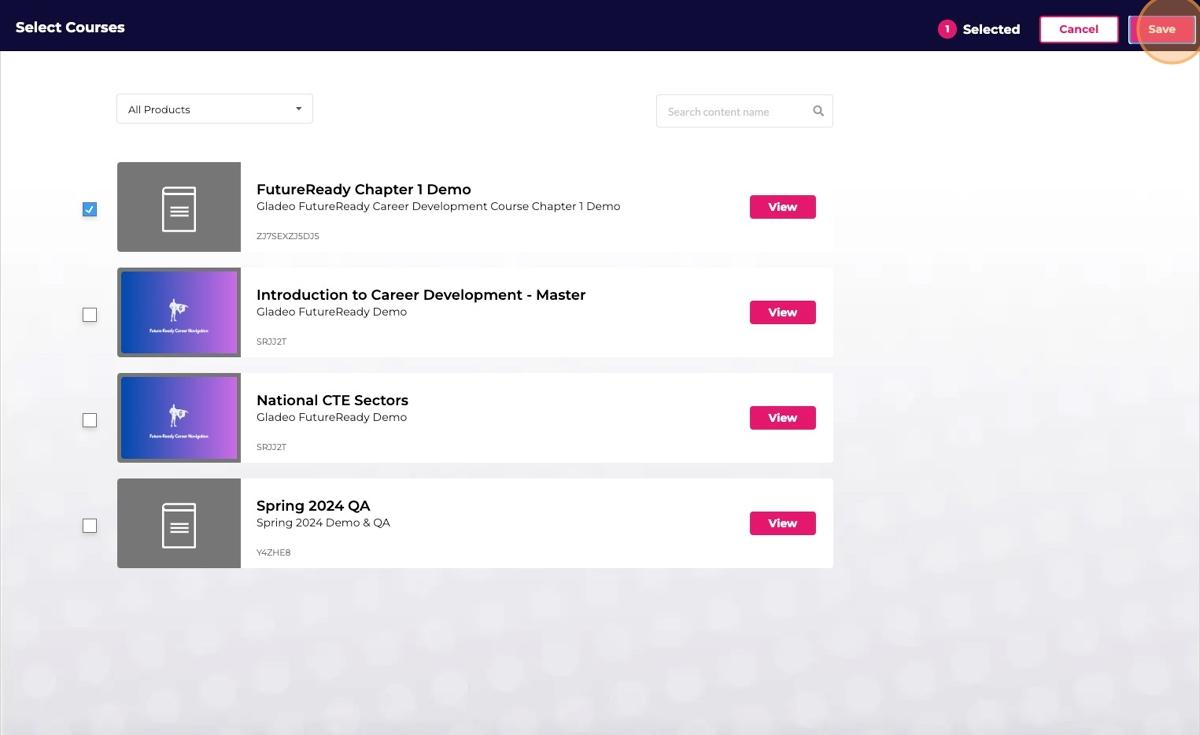
Once you've made the selection, click "Save"
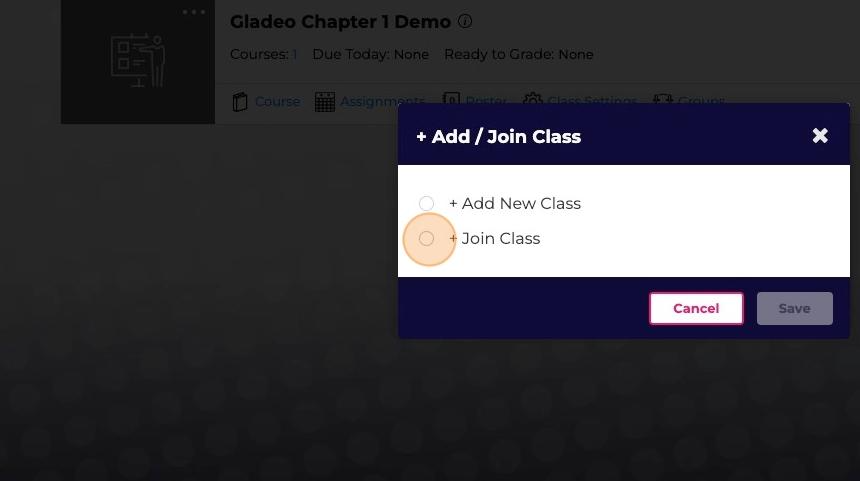
To join a class, click "+ Join Class" on the page in Step 4 of this tutorial.
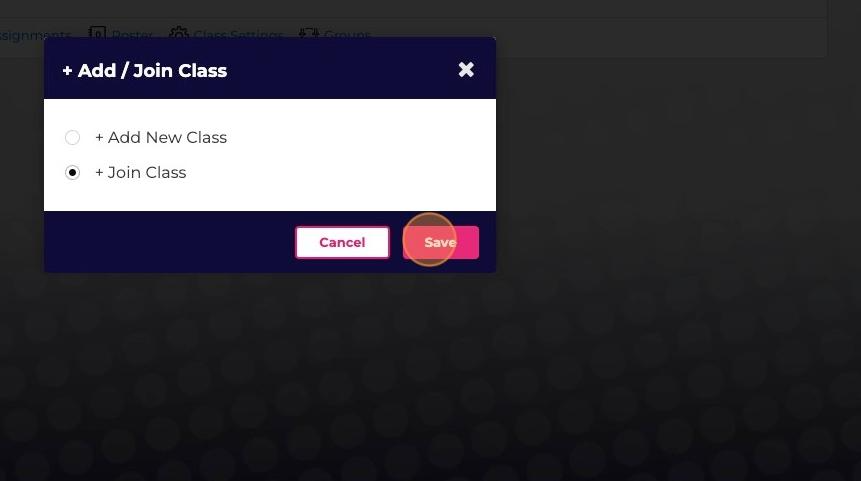
Click "Save"
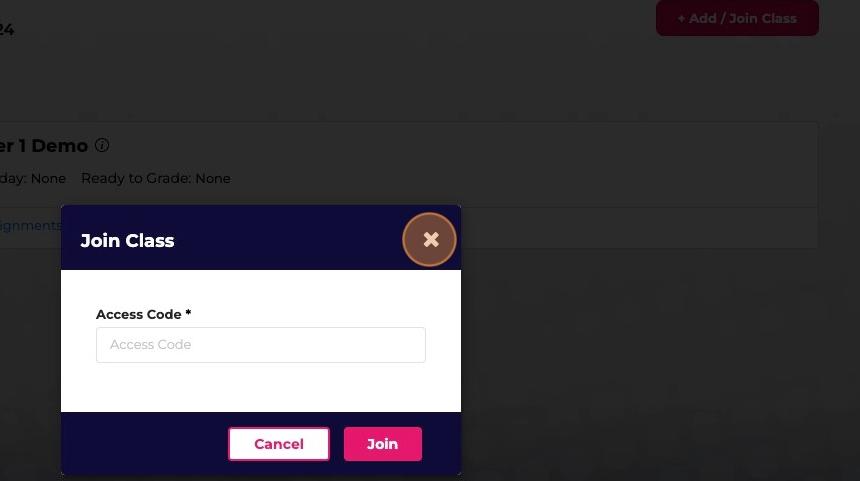
Input the access code provided to you by the teacher
the t
Was this article helpful?
That’s Great!
Thank you for your feedback
Sorry! We couldn't be helpful
Thank you for your feedback
Feedback sent
We appreciate your effort and will try to fix the article